

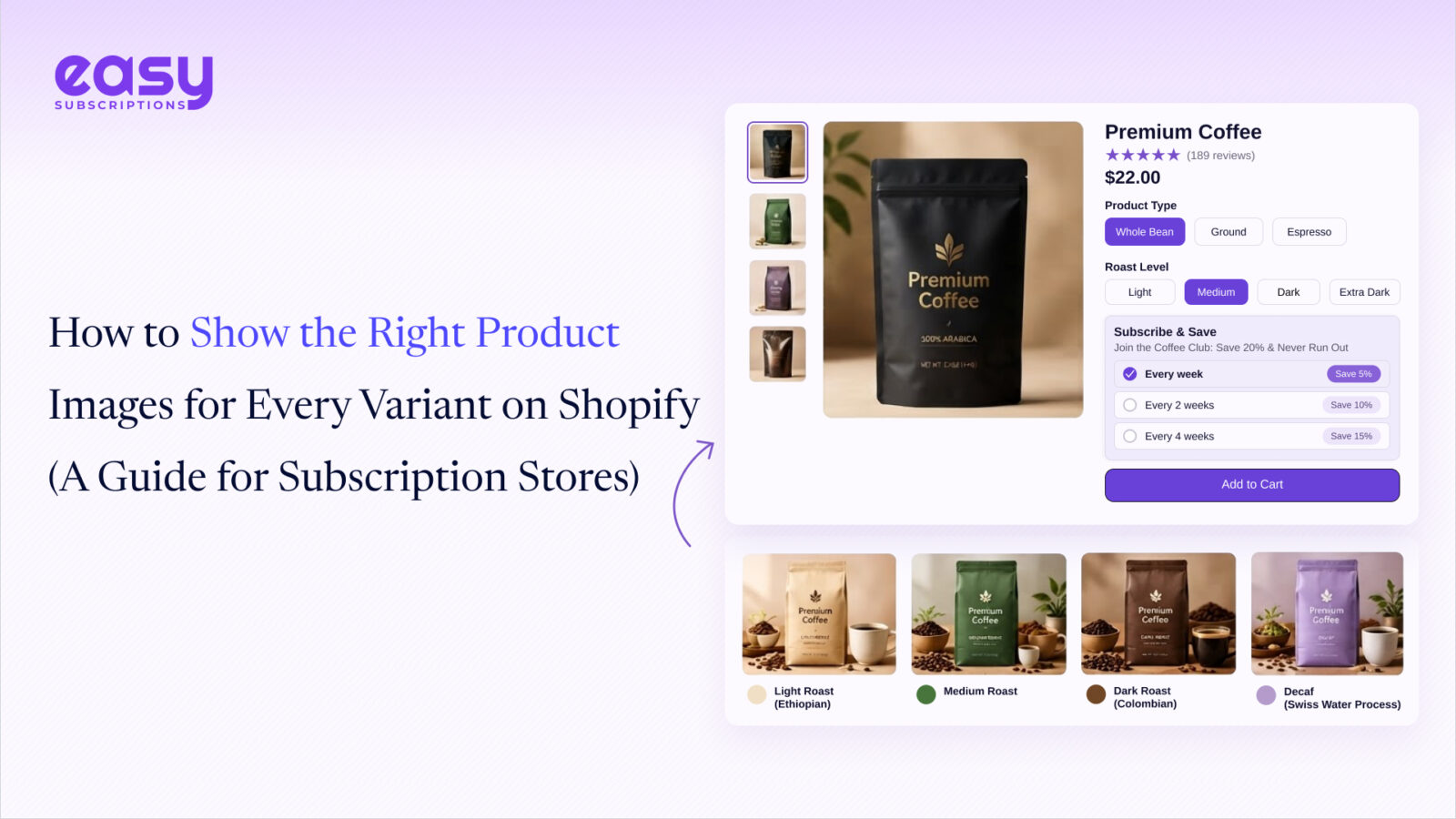


A subscriber picks the Vanilla flavour, the Navy colour or the Medium box, and the product gallery keeps showing the Chocolate, Red and Large photos next to it. That is the default Shopify experience, and it costs sales twice: once at the first order, when the shopper cannot see what they are actually buying, and again on every renewal, when a build-a-box page full of the wrong photos makes swapping items feel like guesswork.
The cause is a platform limit, not a theme bug. Shopify attaches exactly one featured image to each variant. Picking a variant jumps the gallery to that one photo, but every other image on the product stays in the carousel. A product with eight colours and six photos per colour puts 48 photos in front of a shopper who wants six of them. Rubik Variant Images, built by Craftshift, fixes this by assigning a separate set of images to every variant and filtering the gallery to that set when the shopper picks one. It also replaces the variant dropdown with colour and image swatches, on the product page and on product cards. This guide covers the limit, the three ways around it, and how to set the app up in a subscription store.
Why one image per variant is not enough
In the Shopify admin, each variant has a single “variant image” field. That is the photo the gallery jumps to when the variant is selected. The gallery itself is product-level: every image uploaded to the product shows for every variant, in the order they were uploaded. Shopify’s own help documentation describes it the same way: one image per variant.
For a one-colour product that is fine. For anything with a visual option it breaks in three places:
- Product page. The shopper taps the Navy and sees one navy photo followed by five red ones. On mobile, where the gallery is a swipe, they often never find the second navy photo at all.
- Build-a-box and swap flows. Subscription portals that let customers pick a flavour or colour per delivery usually render the product gallery or the variant image. If the gallery is wrong on the product page, it is wrong everywhere the product is embedded.
- Collection pages. Each product card shows one photo and nothing tells the shopper that the hoodie comes in eleven other colours. They scroll past things they would have bought.
Recurring orders make this worse, not better. A first-time buyer tolerates a confusing gallery once. A subscriber who swaps items every month runs into it every month.
Three ways to fix it
1. Reorder the gallery by hand
Upload the photos colour by colour, set each variant’s image to the first photo of its colour, and hope the shopper swipes in order. This costs nothing and works on a store with a handful of products. It stops working the moment a product has more than two or three colours, because the gallery still shows every photo, just in a tidier sequence. And every new colourway means re-dragging the whole gallery.
2. Split each colour into a separate product
One product per colour gives each listing its own gallery, which solves the image problem completely. It creates a different one: the colours no longer appear as options on one page, so the store needs a way to link them back together with swatches, and the subscription widget has to be added to every split product. Craftshift’s other app, Rubik Combined Listings, exists for exactly that structure. For most subscription stores, keeping variants on one product is simpler.
3. Use an app that filters the gallery per variant
This keeps the native product structure and adds the missing layer: a mapping from each option value to its own set of images, stored on the product, and a storefront script that hides every image that does not belong to the selected variant. That is what Rubik Variant Images does, and the rest of this guide walks through it.
What Rubik Variant Images does
Rubik Variant Images & Swatch is rated 5.0 across 492 reviews on the Shopify App Store, carries the Built for Shopify badge, and has been on the App Store since October 2024. Craftshift, the developer, also builds Rubik Combined Listings and several bulk product tools. The core features:
- Per-variant image sets. Assign any number of images, videos or 3D models to each colour, flavour or material. When a shopper picks a value, the gallery shows only that value’s media. Images that apply to every variant, such as a size chart or a lifestyle shot, can be kept visible for all of them.
- AI auto-assign. One click reads the product title, option values, image filenames and alt text, and looks at the images themselves, then sorts every unassigned photo into the right colour. The merchant reviews the result and saves.
- Bulk assign. For large catalogues, the app groups images by their order in the Shopify gallery, using each variant’s featured image as the boundary, and configures hundreds of products in the background.
- Swatches on the product page. The variant dropdown becomes colour circles, image swatches or pill buttons, mixable per option (image swatches for Flavour, pills for Size). Styling lives in a visual editor and the swatches render in a shadow DOM, so theme CSS does not leak into them.
- Swatches on product cards. Collection, search and homepage cards can show a product’s variant swatches; clicking one swaps the card image, price and add-to-cart link, so shoppers see the whole range without opening the product.
- Theme coverage. The app ships native integrations for more than 380 Shopify themes, including the full Dawn and Horizon families, and works with the Beae, EComposer, Foxify, GemPages, Instant, PageFly and Replo page builders. Custom themes are mapped by support.
- No external calls on the storefront. The image mapping is stored in Shopify metafields and read by the theme app extension, so nothing on the product page depends on a third-party server being up.
Pricing is flat and tied to the number of configured products, not to the Shopify plan: Free covers one product, Starter is $25 a month for 100 products, Advanced is $50 for 1,000 and Premium is $75 for unlimited. Every plan includes a monthly allowance of AI auto-assign credits, and the free plan is enough to see the whole thing working on a best-seller before paying.
Setting it up in a subscription store
- Install and enable the app embed. After installing from the App Store, the theme editor shows a Rubik Variant Images app embed under App embeds. Turn it on for the live theme. Nothing changes on the storefront until a product is configured, so this step is safe.
- Configure the first product. Open the product in the app, choose the option that drives the photos (usually Colour or Flavour) and either drag images onto each value or click the AI auto-assign button and review its suggestions. Save. The gallery on that product now filters.
- Keep shared images visible. Any image that applies to every variant, such as a size chart or a packaging shot, is marked as common and stays in the gallery for all values. Check that behaviour on the first product before moving on.
- Turn on swatches. On the Swatches page, list the option names that should render as image or colour swatches (Colour, Flavour, Scent). Options not on the list render as pills or, with one switch, as dropdowns, which is the usual choice for Size.
- Check the subscription widget. Open the product page on the live store, switch variants, and confirm that the subscription selling plan widget and the add-to-cart button follow the selection. Then open the customer portal of a test subscription and run through a swap to confirm the images follow there too.
- Roll out with bulk assign. Once the first few products look right, run bulk assign on the rest of the catalogue and spot-check a sample. New products added later are configured the same way.
The app’s demo store shows the filtered gallery and swatches on a live theme, and the getting started guide covers the setup step by step. More guides live on rubikvariantimages.com.
Where it fits with a subscription app
Rubik Variant Images does not touch pricing, selling plans or the customer portal. It only decides which media a product page shows and how the options are picked. That makes it a clean pairing with a subscription app such as Easy Subscriptions: the subscription app handles the recurring billing, the box builder and the portal, and Rubik makes sure the photos match the variant at every step. For a store that lets subscribers pick a flavour or colour per delivery, the two together remove the most common reason a swap gets abandoned, which is a shopper not being sure what they just chose.