



Running a Shopify store sometimes means making difficult decisions. You may want to reduce costs, take a temporary break, move to another platform, or close your store completely. If that is your situation, you may be wondering how to cancel your Shopify subscription without losing important data or forgetting about separate app charges.
The good news is that canceling a Shopify store is straightforward when you prepare properly. Before deactivating your store, however, you should back up important information, review your apps and billing, check your domain, and understand what happens after cancellation.
This guide explains how to cancel a Shopify subscription, what to do before canceling, how Shopify app subscriptions differ from your Shopify plan, and alternatives you can consider if you don’t actually want to close your store.
Can You Cancel a Shopify Subscription at Any Time?
Yes, Shopify merchants can cancel their Shopify plan from the store’s admin settings. However, the exact billing and deactivation details can depend on your plan and billing situation, so it’s important to review the current information shown in your Shopify admin and Shopify’s official documentation before confirming cancellation.
Canceling your Shopify plan and canceling a third-party Shopify app are also two different things.
If your goal is simply to stop paying for one app, you usually don’t need to deactivate your entire Shopify store. You can cancel the individual app subscription instead.
Before You Cancel Shopify: 5 Things to Do First
Don’t immediately click the deactivate button. Take a few minutes to prepare your store.
1. Review and Cancel Paid Apps
Your Shopify plan and third-party apps can have separate billing arrangements.
Before closing your store, review the apps installed on your store and identify which ones have recurring charges. Some apps may use Shopify billing, while others may have separate billing arrangements.
Go to:
Shopify Admin → Settings → Apps and sales channels
Review your installed apps and cancel any subscriptions you no longer need according to each app’s cancellation process.
If you’re only trying to reduce your monthly costs, you may not need to cancel Shopify itself. Removing unnecessary paid apps could be enough.
2. Export Your Important Store Data
Before you deactivate your store, create your own backup of important information.
Consider exporting:
Products
Customers
Orders
Inventory information
Important reports
Store content
Theme files
Important images and media
Business records
For example, product information can generally be exported from:
Shopify Admin → Products → Export
Customer and order information can also be exported from their respective Shopify admin sections.
Don’t rely solely on Shopify’s data retention policies. Check Shopify’s current documentation for the latest information and keep your own backups of anything your business may need later.
3. Check Your Domain
Your domain is an important part of your brand, so don’t overlook it.
If you purchased your domain through Shopify, review the domain’s ownership and transfer options before closing your store.
If your domain is registered with a third-party provider, check that your DNS settings and domain registration will continue to work with your next platform.
Go to:
Shopify Admin → Settings → Domains
Review your domain configuration and decide whether you need to transfer, disconnect, or reconnect it elsewhere.
4. Download Your Billing Records
Download invoices and billing records that you may need for accounting, bookkeeping, or tax purposes.
Go to your Shopify billing area and save important invoices before you lose access to your store administration.
Keep these records organized with your other business documents.
5. Review Your Store Before Deactivation
Before canceling, check whether you have:
Active orders
Pending refunds
Open customer issues
Outstanding payments
Active domains
Paid apps
Subscription products
External integrations
Marketing campaigns
Taking care of these items first can make the transition much smoother.
How to Cancel a Shopify Subscription
Once you’ve completed your backup and billing checks, you can proceed with the cancellation process.
The Shopify admin interface can change over time, so use the options currently displayed in your account.
Step 1: Log In to Shopify Admin
Sign in to your Shopify store using an account with the permissions required to manage the store plan.
You generally need to be the store owner or have the appropriate account permissions to deactivate the store.

Step 2: Open Settings
From your Shopify Admin, click:
Settings
You can find Settings at the bottom of the Shopify admin navigation.

Step 3: Open Your Plan Settings
Select Plan or the relevant plan/billing section shown in your Shopify admin.
Review your current plan and billing information before proceeding.

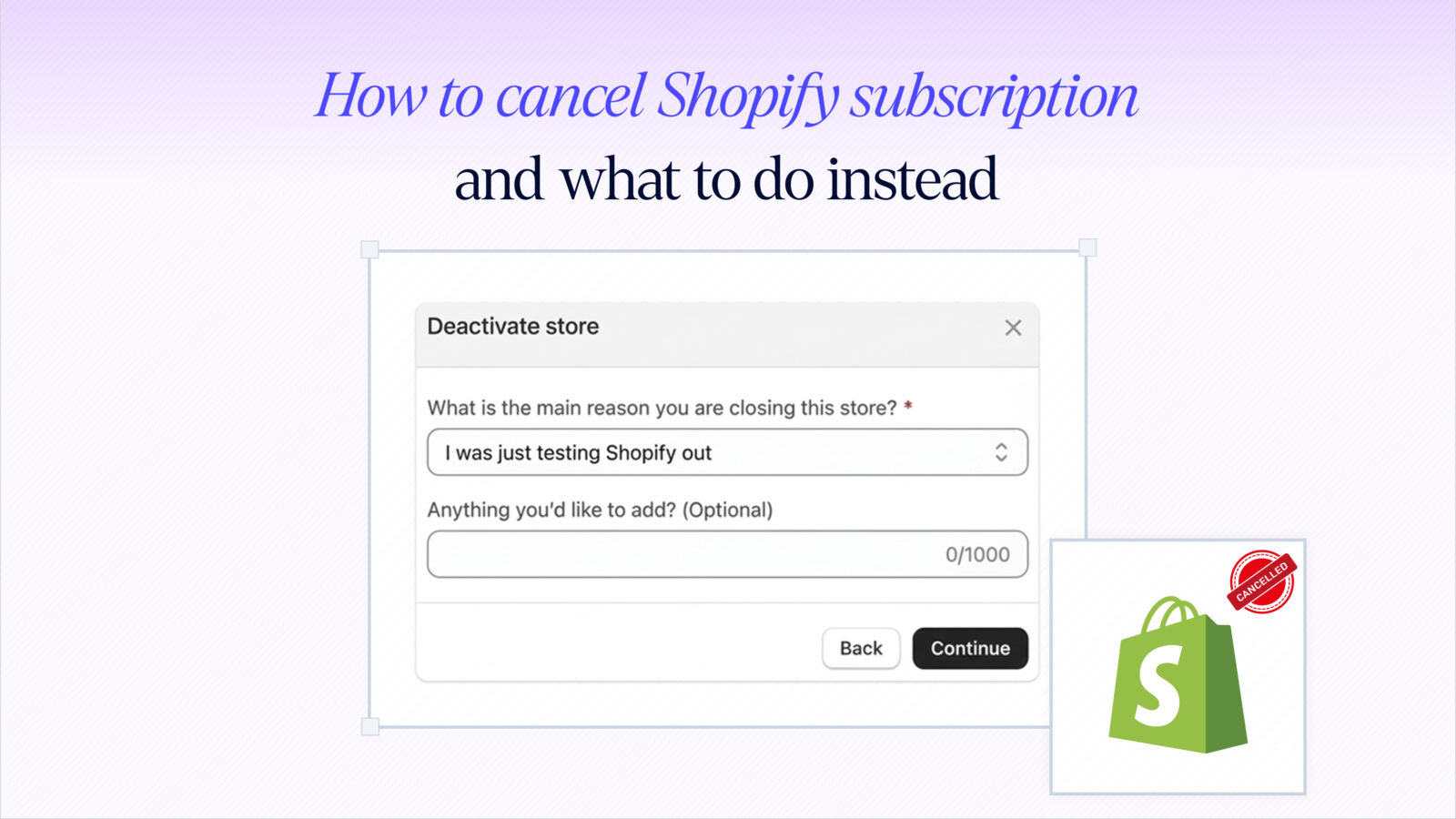
Step 4: Select the Deactivation Option
Look for the option to deactivate or cancel your store.
Shopify may use different wording depending on the current admin interface and your account.

Step 5: Select a Reason
You may be asked to select a reason for leaving Shopify.
Choose the option that best describes your situation.

Step 6: Confirm Your Account
Shopify may ask you to confirm your identity or enter your password before continuing.
Complete the security verification shown on your screen.

Step 7: Confirm Deactivation
Review the information carefully and confirm the deactivation.
Once completed, your Shopify store will no longer operate as an active storefront under the canceled plan.
Important: Don’t assume that canceling your Shopify plan automatically cancels every third-party service connected to your business. Review your apps, domains, subscriptions, and external services separately.
How to Cancel a Shopify App Subscription
Sometimes people search for “how to cancel Shopify subscription” when they actually want to cancel a subscription to a Shopify app.
These are different processes.
If you want to stop paying for one app while keeping your Shopify store active, you should cancel the app rather than your Shopify plan.
A typical process is:
Open Shopify Admin.
Go to Apps or Apps and sales channels.
Find the app.
Open its billing or subscription settings.
Select the available cancellation or downgrade option.
Confirm the cancellation.
The exact process depends on the app.
Some apps use Shopify’s billing system, while others may have separate billing arrangements. Always check the app’s own billing instructions before assuming that uninstalling it is enough.
Shopify Store Cancellation vs. App Cancellation
| What you want to stop | What you should review |
|---|---|
| Entire Shopify store | Shopify plan/deactivation |
| One Shopify app | App subscription |
| Several paid apps | Individual app billing |
| Temporary store closure | Available Shopify pause options |
| Recurring product subscriptions | Your subscription app/settings |
This distinction is particularly important for merchants using subscription apps.
What Happens After You Cancel Shopify?
Before canceling, understand the practical consequences.
Depending on your cancellation and billing situation:
Your storefront may become unavailable.
Customers may no longer be able to place orders.
Shopify app access can be affected.
Your billing arrangement changes according to the cancellation.
Your store information may be retained for a limited period under Shopify’s policies.
Reactivation may be possible depending on your account and the applicable retention period.
Because Shopify’s policies can change, check Shopify’s current official documentation for the exact data retention period and any plan-specific conditions before relying on a particular timeframe.
Will You Lose Your Shopify Store Data?
Don’t assume that cancellation means you can always recover everything later.
Before deactivating your store, create your own backups of important business information.
This is especially important for:
Customer records
Orders
Products
Theme customizations
Images
Reports
Business documentation
Your own backup gives you more control if you later decide to migrate, rebuild, or reactivate your store.
Can You Pause Shopify Instead of Canceling?
If you’re not ready to permanently close your store, investigate whether a Shopify pause option is more appropriate for your situation.
A pause option can be useful when:
You’re taking a temporary break.
You’re rebuilding your store.
Your business is seasonal.
You’re waiting for a new product launch.
You want to reduce costs temporarily.
You don’t want to start over later.
The exact availability, pricing, and features of Shopify’s pause plans can change, so check the options currently displayed in your Shopify admin before making a decision.
The key difference is simple:
Canceling: You’re closing or deactivating the store plan.
Pausing: You’re taking a temporary break while retaining a path to continue later.
Should You Downgrade Instead of Canceling Shopify?
If your main reason for canceling is cost, compare the available lower-priced Shopify plans before closing your store.
A downgrade may make more sense if you still:
Have regular customers
Want to keep your store active
Need your store infrastructure
Want to continue selling
Expect sales to recover
Don’t want to rebuild your store later
Before choosing a plan, compare the current pricing and features available for your business and location.
What If Low Sales Are the Reason You Want to Cancel?
Sometimes the real problem isn’t Shopify itself. It’s inconsistent revenue.
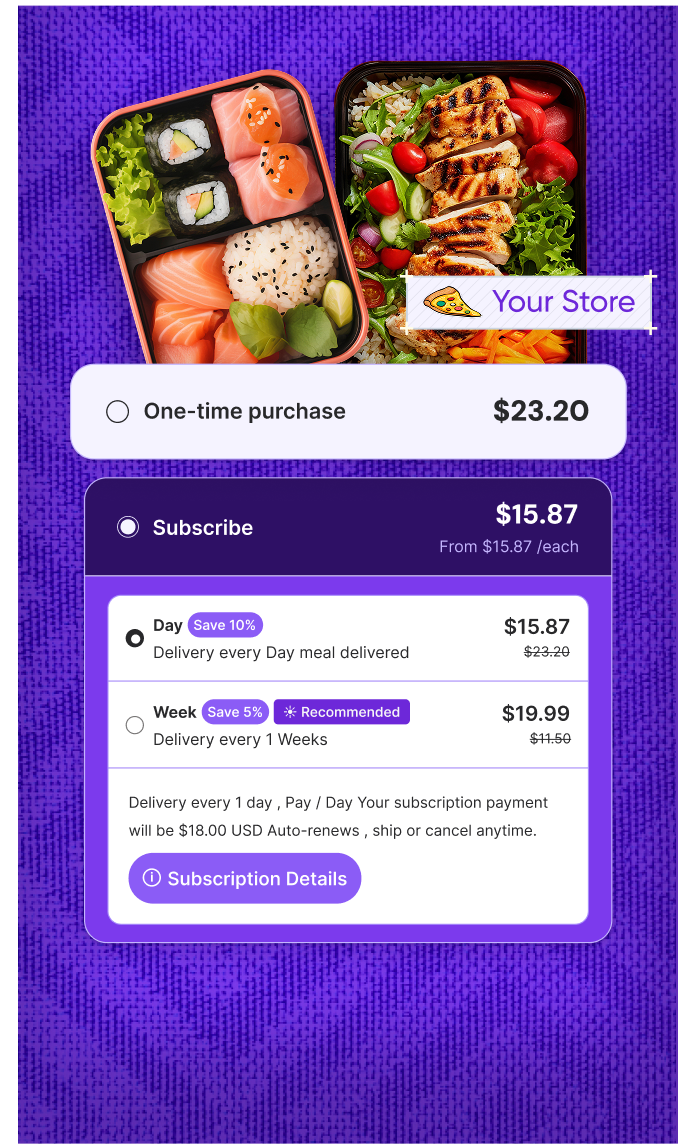
If your products naturally support repeat purchases, a subscription model can give customers a convenient way to reorder while helping your store generate recurring revenue.
For example, a Shopify merchant selling:
Coffee
Skincare
Pet products
Supplements
Food
Household products
Personal care items
could offer customers the option to receive products on a recurring schedule.
Instead of relying entirely on customers to remember to place another order, merchants can create a recurring purchase experience.
How Subscriptions Can Help Shopify Merchants
A subscription model can help merchants turn suitable one-time purchases into recurring customer relationships.
Depending on your business model, subscriptions can provide:
Repeat purchases
More predictable revenue
Improved customer retention
Greater customer lifetime value
Convenient automatic ordering
Opportunities for subscriber-only benefits
However, subscriptions aren’t suitable for every product. Customers need a clear reason to continue paying.
A successful subscription experience should also give customers control over their plans.
Features such as:
Pause
Skip
Change frequency
Update products
Update payment details
Cancel
can make the subscription experience more flexible.
Offer Subscriptions With Easy Subscription
If inconsistent repeat purchases are one of the reasons you’re considering closing your Shopify store, you may want to explore a subscription model before making that decision.
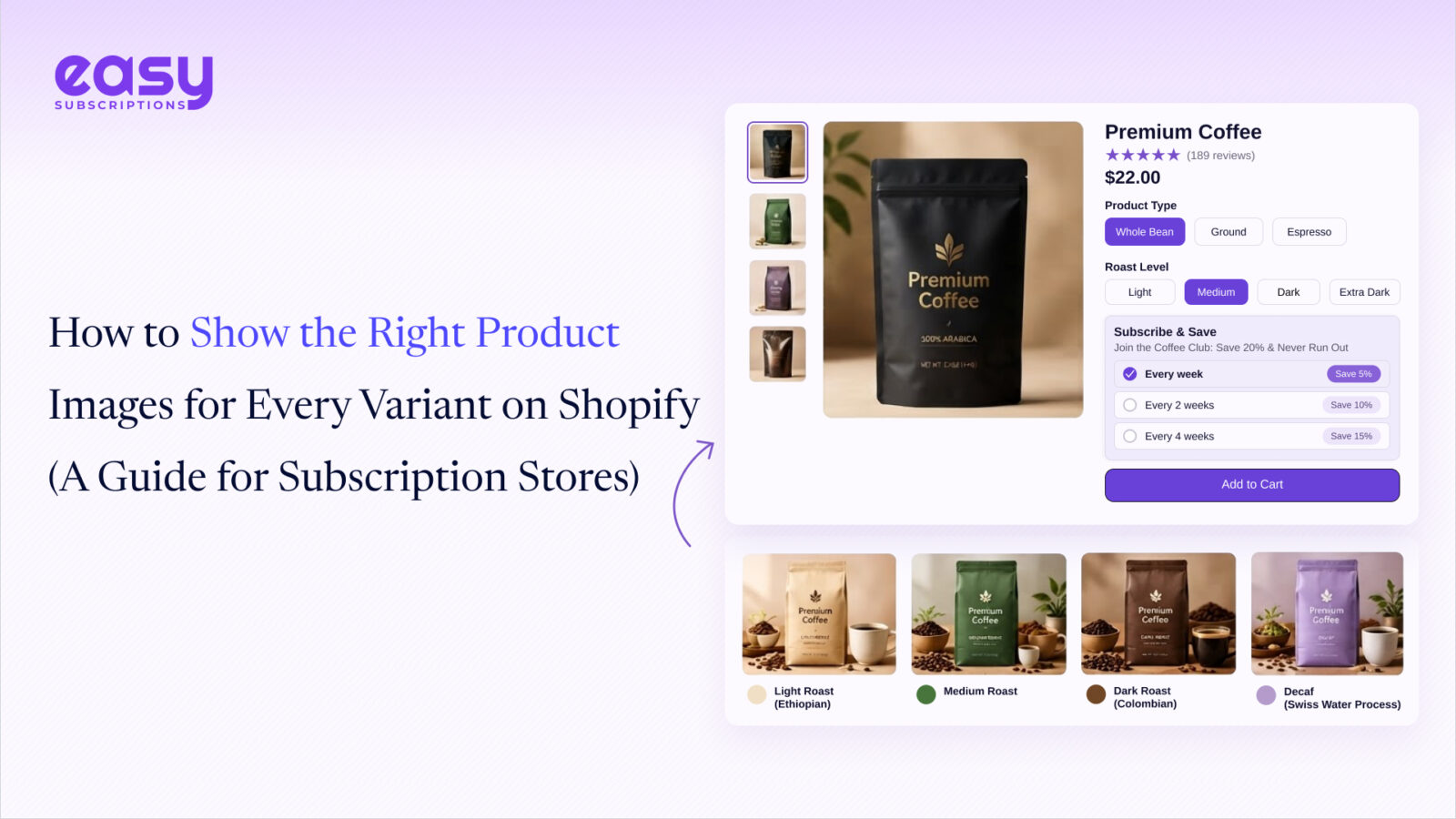
Easy Subscription helps Shopify merchants offer recurring purchase options for suitable products and create a more convenient experience for repeat customers.
Instead of relying only on one-time purchases, merchants can give customers the option to subscribe according to their preferred schedule.
[Try Easy Subscription and explore recurring sales for your Shopify store.]
Cancel vs. Pause vs. Downgrade
Before making a final decision, compare your options:
| Option | Best for | Store status |
|---|---|---|
| Cancel | Permanently leaving Shopify | Deactivated |
| Pause | Taking a temporary break | Limited functionality |
| Downgrade | Reducing costs while continuing | Active |
| Add subscriptions | Improving repeat purchases | Active |
The best option depends on why you’re considering cancellation in the first place.
If you’re permanently leaving ecommerce, cancellation may be appropriate.
If you’re taking a short break, pausing may make more sense.
If costs are the problem, compare lower plans and remove unnecessary apps.
If inconsistent repeat sales are the problem, improving retention and introducing subscriptions may be worth considering.
Conclusion
Knowing how to cancel a Shopify subscription is only part of the decision. Before deactivating your store, protect your business by backing up important information, reviewing app subscriptions, checking your domain, downloading billing records, and resolving outstanding orders or payments.
If you need a temporary break, compare Shopify’s available pause options. If cost is the main concern, review whether a lower plan or removing unnecessary apps could solve the problem.
And if inconsistent repeat purchases are pushing you toward cancellation, consider whether your products are suitable for subscriptions. A recurring purchase model can help Shopify merchants build stronger customer relationships and create a more predictable revenue stream.
The right decision depends on your business goals. Don’t cancel simply because sales are inconsistent first determine whether the underlying issue can be solved while keeping your Shopify store active.